Quick start
- Install BUFFR and load it on a track, bus, or master.
- Leave Capture on On sound, or choose Always when the timeline must never pause. History defaults to 90 minutes and can be set from 1–120.
- For MIDI routed through this track, choose DAW. Choose System device only when BUFFR must open controllers directly.
- Play normally. BUFFR does not need the DAW transport to be recording.
- Drag across the wanted audio or MIDI, then drag the selection into your DAW, another BUFFR, an accepting app, or a file manager.
BUFFR must already be loaded and capturing. It cannot recover material from before the instance opened, after Clear, or beyond the chosen history length.
Read the interface
Hover, focus, or tap a region. This is a real 4K editor capture; labels may vary by build.
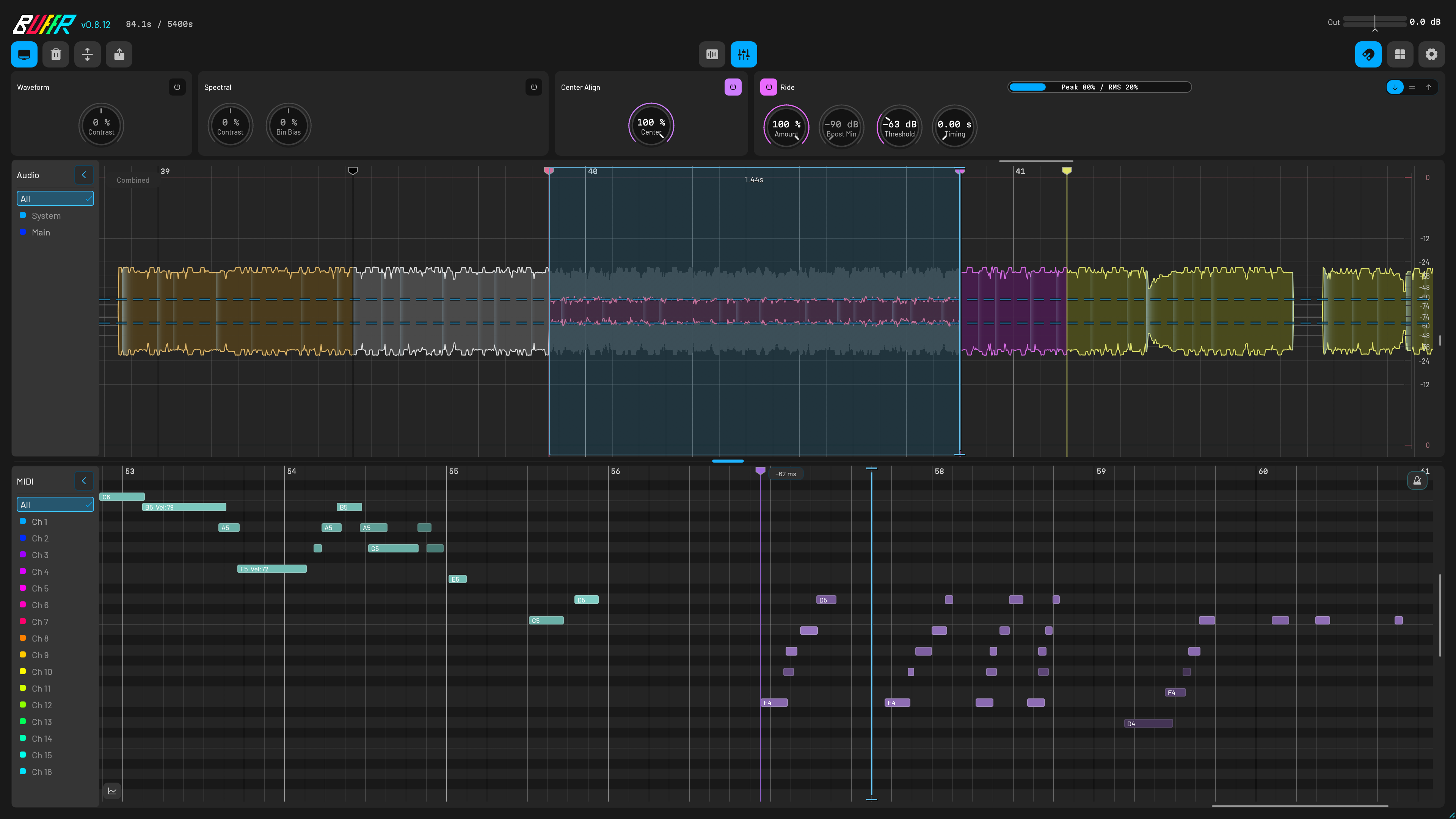
Every button, including right-click
BUFFR keeps secondary controls behind right-click. If a control feels simple, try its right-click menu before opening Settings.
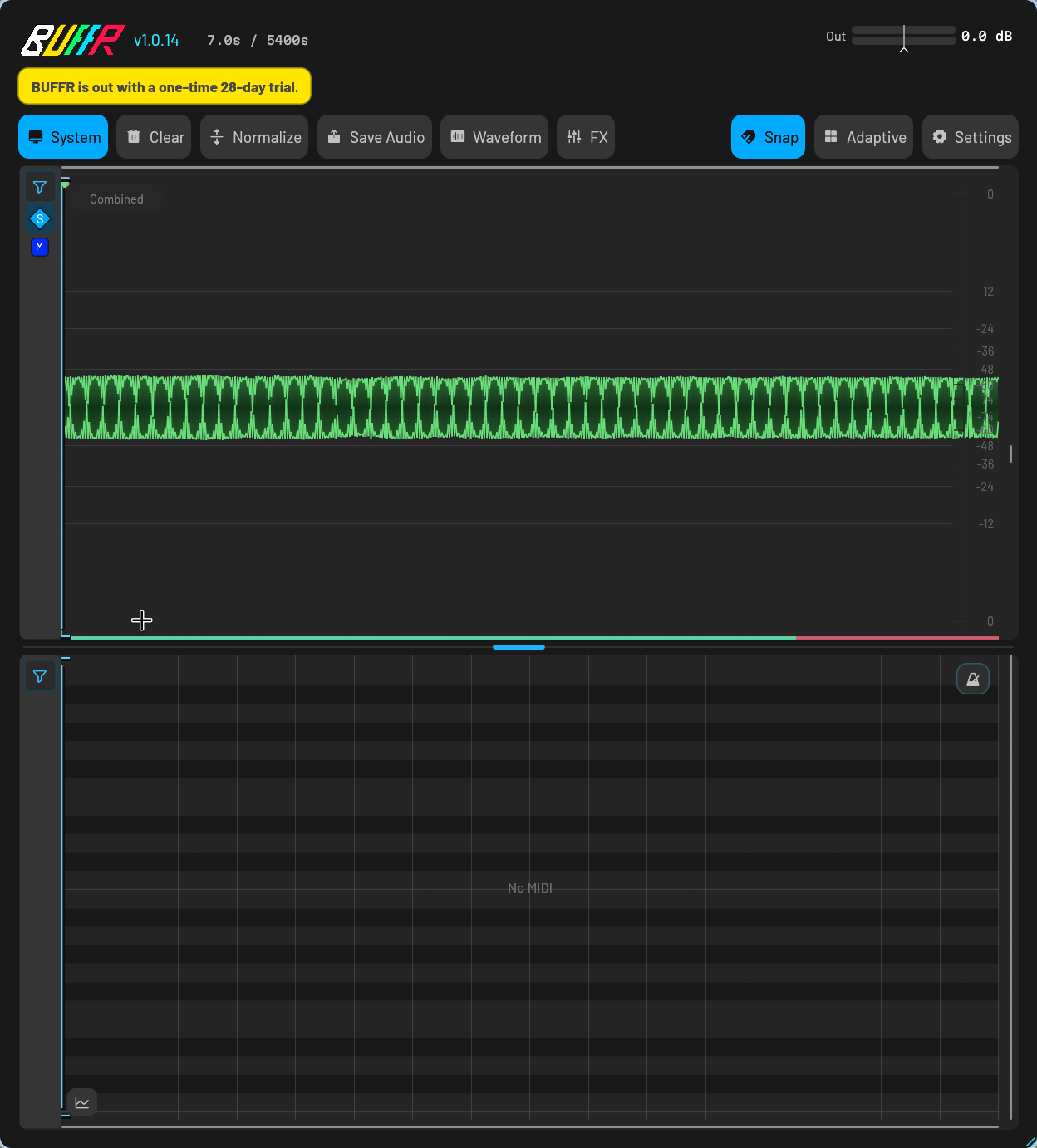
Record / Stop
Manual mode onlyStart or stop manual capture.
System
ClickCapture the computer’s stereo output in its own lane.
Clear
ClickErase this instance’s retained history and recovery state.
Normalize
ClickNormalize Wet preview and exported audio without changing the captured source.
Save Audio / MIDI / Both
ClickExport the current selection with the saved export settings.
Save Audio / MIDI / Both
Right-clickOpen Export settings before saving.
Waveform / Spectral
ClickSwitch the audio lane between waveform and Spectral Grab views.
Waveform / Spectral
Right-clickOpen the appearance settings for the active view.
FX
ClickOpen or close the offline processing drawer.
Snap
ClickTurn all snapping on or off.
Snap
Right-clickChoose transient, zero-crossing, MIDI-grid targets and the Audio–MIDI offset.
Adaptive / division
ClickChoose Adaptive, Bar, Beat, 1/8, or 1/16 grid timing.
Adaptive / division
Right-clickOpen Grid appearance settings.
Settings
ClickOpen capture, history, MIDI, export, interface, account, and support settings.
Audio selection
Right-clickConvert the selected audio to MIDI. With no selection in Waveform view, convert the full waveform.
Marker
Right-clickRename the marker or change its color.
MIDI lane
Right-clickOpen Smart Quantize for All notes, the current Marker, or the current Selection.
Choose a setup
- Instrument track
- Use DAW MIDI and On sound. Put BUFFR before an instrument that consumes MIDI when your host requires it. This is the sample-accurate choice.
- Master or bus
- Use Always for uninterrupted history. Add System device only for controllers the DAW does not route to this instance. Global MIDI timing is approximate.
- Separate stems
- Use host-routed Aux inputs or separate BUFFR instances on groups. A master insert can keep the final mix, not recover tracks the DAW already summed.
Default to DAW MIDI. Use System device MIDI when BUFFR sits somewhere the controller does not reach, such as the master bus. Do not enable both paths unless you need both.
Install and activate
macOS
Open the downloaded ZIP, then open the included BUFFR.pkg and follow Apple Installer. The universal package is Apple-signed and notarized for Apple Silicon and Intel, and installs the BUFFR app plus CLAP, VST3, and AUv2. Restart and rescan the DAW; Logic Pro uses the AUv2 build.
Windows
Extract the download. It contains the portable BUFFR.exe standalone app plus complete CLAP and VST3 bundles; copy the plug-in bundles to your normal user or system folder. Restart the DAW and force a rescan if BUFFR does not appear.
Linux
Extract the archive and run ./install.sh. It installs the standalone app to ~/.local/bin/BUFFR and the plug-ins to ~/.clap/BUFFR.clap and ~/.vst3/BUFFR.vst3. Use --system only for a deliberate system-wide install.
Start the one-time 28-day trial during setup, or paste the key from your Polar receipt and select Activate BUFFR. Offline activation uses Activate offline, followed by Load downloaded license. One BUFFR license covers up to three computers; remove old machines from Manage activations.
Platform support
| Platform | Recommended | Global MIDI | System Audio |
|---|---|---|---|
| Windows | Windows 11 25H2 x64, fully updated | Windows 11 24H2+ can share supported MIDI inputs through Windows MIDI Services. Use DAW MIDI for legacy or exclusive devices. Windows 10 is best effort. | Captures the default output through built-in loopback. No helper or device picker. |
| macOS | macOS 13+, Intel or Apple silicon | CoreMIDI input or BUFFR Global In. No routing helper. | Requires Screen Recording permission for the bundled helper. |
| Linux | x86_64, glibc 2.35; a current PipeWire desktop | ALSA Sequencer or BUFFR Global In. Virtual Raw MIDI is offered only after confirmed RawMIDI exclusivity. | Native PipeWire; the DAW host family is excluded from the System lane. |
macOS package caveat: System Audio needs macOS 13. The shipped AUv2 binary currently has an unintended macOS 15 deployment floor; use CLAP or VST3 on macOS 13–14 until that package is corrected.
Where to place BUFFR
| Placement | What it retains | Best for |
|---|---|---|
| Instrument track | That track’s audio and DAW-routed MIDI | Isolated, sample-accurate performances |
| Bus or group | The group mix plus an optional System device | Drums, vocals, synth groups, live submixes |
| Master | The finished mix, separate System Audio, and an optional controller | Continuous mix capture |
| Multiple instances | Independent buffers at every chosen point | Separate stems and BUFFR-to-BUFFR recovery |
Limits to know
- BUFFR only knows what reaches this instance. A master insert does not see every MIDI track or recover separate tracks from a summed mix.
- DAW MIDI is sample-aligned. System device MIDI keeps performance timing, but its alignment to the DAW timeline is approximate.
- History starts when the instance opens. Clear, the selected time limit, and a full MIDI event ring can remove older material.
- Crash recovery writes about every five seconds. An abrupt crash can lose the newest uncheckpointed tail.
What BUFFR captures
Open Capture Sources to see what the host and operating system are actually delivering. Activity meters make the boundary visible before you rely on it.
One instance reserves up to 16 DAW capture slots—stereo Main plus seven stereo Aux pairs—and a separate stereo System pair, for up to 18 retained audio planes. Only buses the host actually negotiates and routes exist in the buffer.
| Source | Capacity | Routing rule |
|---|---|---|
| DAW audio | Main plus up to seven stereo Aux pairs | Only channels the host negotiates and routes to this instance |
| System Audio | One separate stereo lane | Computer output captured by BUFFR’s built-in OS backend |
| DAW MIDI | All 16 channels on the host port | Only MIDI the DAW routes to this instance |
| System device MIDI | All 16 channels from linked inputs | Direct OS device capture, independent of track arming |
System Audio capture
System Audio is a separate operating-system capture path for browser, streaming app, call, game, or other computer output. It always has its own stereo lane. On Windows and macOS that system mix can also contain audible DAW output; Linux deliberately excludes the DAW host process family.
- Open Capture Sources and verify or toggle System Audio.
- Play the other application and confirm activity on the System lane.
- Keep producing. Select the System lane only when you want that material back.
- Windows: BUFFR follows the default output device through its built-in loopback path. There is no System Audio device picker, helper, or service.
- macOS 13+: the plug-in launches its bundled helper only while System Audio is active. Grant Screen Recording permission when macOS asks.
- Linux: BUFFR uses native PipeWire to mix up to 16 eligible playback application streams into stereo while excluding the DAW host family. No MIDI route service is involved.
You do not need to install a third-party loopback cable or place a separate bridge on another track. See the focused System Audio guidefor examples.
BUFFR temporarily suppresses new System capture while its own audible preview is playing to avoid recording the preview back into itself.
MIDI capture
DAW records the MIDI your host sends through the plug-in and keeps sample-accurate host timing. System device opens linked controllers at OS level, so BUFFR can sit on the master or a bus without arming its track. Their relative performance timing is preserved, but alignment to the DAW is approximate.
DAW + device captures both. If the same keyboard arrives through both paths, exact matching events within 50 ms are collapsed automatically. Select one path when either route transposes, remaps, filters, or delays events enough that they no longer match. A master insert is not a tap for every MIDI clip in the project: use DAW routing for generated clips, and System device for the physical controller you play.
MPE, MIDI 2.0, and export fidelity
BUFFR retains note velocity, CC, pitch bend, pressure, SysEx, all 16 channels, MPE, per-note expression, automation, and supported MIDI 2.0 UMP data when supplied.
Include expression keeps associated performance data in the selection. Export creates a Standard MIDI File. If the selection contains richer per-note, group, port, or UMP data, BUFFR also writes a lossless .buffr-midi companion because SMF cannot represent all of it.
| OS | Direct device path | When sharing needs help |
|---|---|---|
| macOS | CoreMIDI input or BUFFR Global In virtual port | No BUFFR service; route another app to the virtual port when useful |
| Windows | WinMM input; current Windows 11 redirects supported devices through Windows MIDI Services | There is no BUFFR virtual port or routing helper. For a busy legacy device, use DAW MIDI or release it in the other application, then Retry. |
| Linux | ALSA Sequencer input or BUFFR Global In virtual port | Virtual Raw MIDI is offered only when direct access fails and BUFFR confirms RawMIDI ownership |
Capture history
- Always
- Audio and MIDI keep moving through the selected 1–120 minute window without waiting for a threshold.
- On sound
- The default. Audio starts when any enabled audio source crosses the threshold and keeps a configurable tail; MIDI continues capturing below the audio threshold.
- Manual
- Captures only while BUFFR’s Record control is armed. Use this when you want explicit takes.
Memory and event limits
Retained audio stays in RAM. A dense 16-channel, two-hour history can therefore use substantial memory. Recovery checkpoints are a separate disk copy and require 2 GiB of free space beyond the pending write.
MIDI uses fixed event rings: 32,768 interpreted events, 4,096 raw events, and 4,096 UMP events. Dense MPE or controller streams can fill them before the selected time limit.
Find, preview, and select the useful moment
- Use the waveform for time and level, or switch to Spectral view for frequency detail.
- Scroll to zoom time and middle-drag to pan. Use the source and channel filters to isolate what you want.
- Drag across an audio or MIDI lane. Drag either edge to refine the range.
- Press Space over a lane to preview. Hold Space to loop the current selection.
- Drag from the middle of the selection to export it.
Snap can combine DAW bars and beats, audio transients, true zero crossings, markers, and MIDI positions. Hold Shift while selecting or moving an edge to bypass Snap.
Enable Link to Audio when Audio and MIDI belong to the same performance. A selection that crosses both lanes becomes Both; its edges, markers, and snap positions stay aligned. Drag from Audio for aligned audio-first multi-file export, or choose Save Both. Audio-only and MIDI-only selections remain available.
Spectral Grab: select by time and frequency
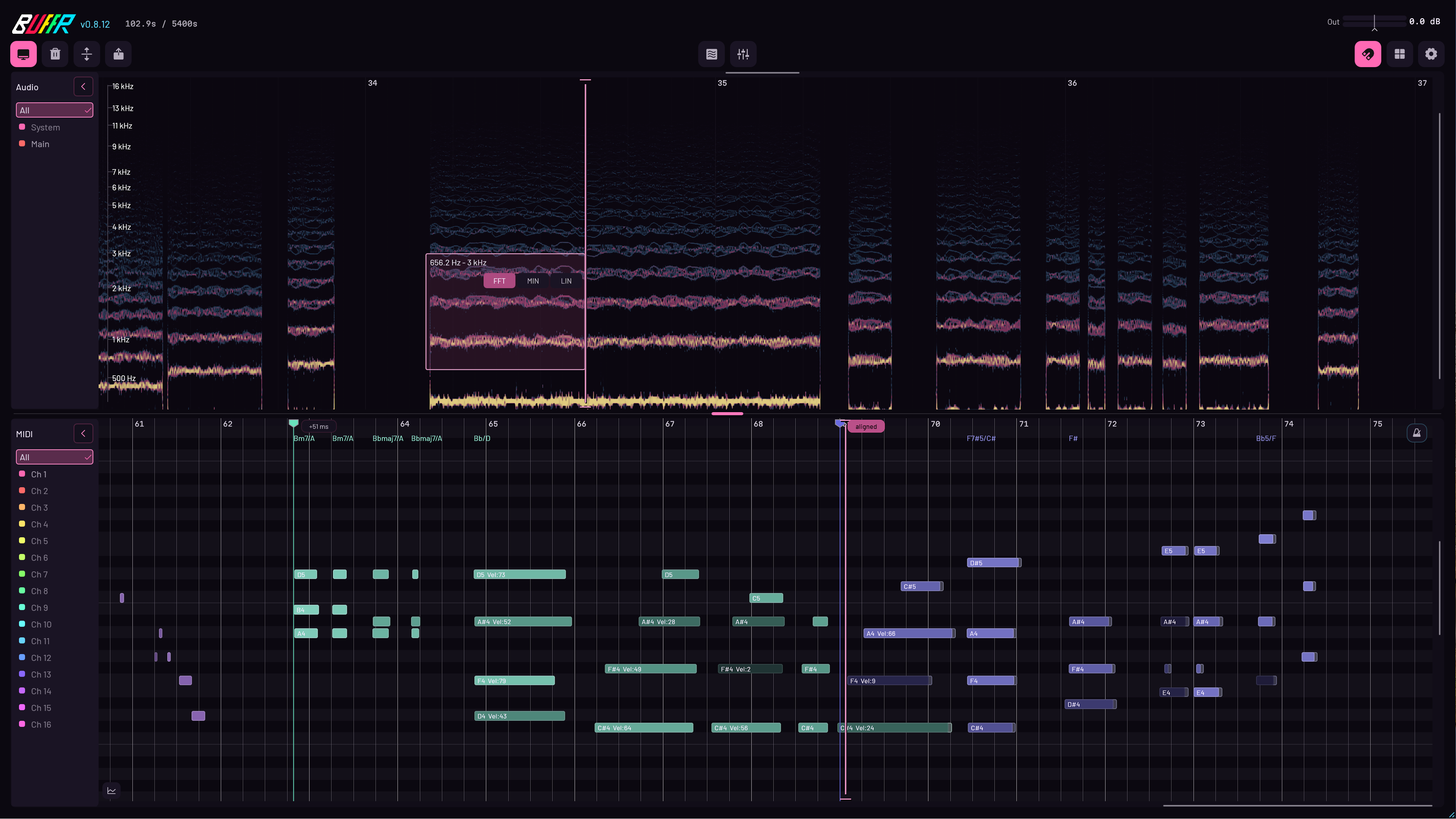
A normal retrospective recorder can only give you a time range. Spectral Grab lets you draw around one sound inside that range—for example a note, click, overtone, breath, or browser sound that overlaps other material.
- Switch the audio view to Spectral.
- Alt-drag a rectangle around the wanted time and frequency area. A normal drag remains a time-only selection.
- Choose FFT, MIN minimum-phase, or LIN linear-phase reconstruction.
- Audition the isolated band, then extract it as audio or use Remove to render that frequency region out of the Wet result. The original captured history remains unchanged.
Drag between BUFFR, DAWs, apps, and the desktop
Drag-out uses Matari Audio’sopen-source audio plug-in drag-and-drop protocol. The payload is a real audio or MIDI file, so it can cross the plug-in boundary instead of relying on a private DAW clip format.
- To a DAW: drop on a timeline, sampler, browser, or other target that accepts files.
- To another BUFFR: the target instance imports the audio or MIDI file. The source instance ignores its own file if you accidentally drop it back on itself.
- To another app: video editors, samplers, and other applications work when they accept a normal file drop.
- To the desktop or file manager: keep a normal file outside the DAW.
Formats and import behavior
Audio export supports 16- or 24-bit FLAC and WAV. MP3, AAC/M4A, and Ogg/Opus require FFmpeg. MIDI exports as a Standard MIDI File. WAV import is native; FLAC, MP3, M4A/AAC, Ogg/Opus, and AIFF import require FFmpeg. Dropping a file onto BUFFR replaces that lane’s retained content; audio import can be undone.
Offline FX, normalization, undo, and redo
Offline processing works on the selected audio without adding a live effect to the DAW signal path. Use Dynamics for level contrast,Spectral for frequency-domain contrast, andAdaptive Phase for content-aware peak balancing. AuditionDry and Wet. Wet preview, playback, drag-out, and export use the processed result without replacing the captured history.
Normalize can target peak or true peak. Export can preserve the selected channel layout or fold it to mono. Selection, marker, and processing edits support undo and redo; the original captured history and DAW project audio are never rewritten.
Crash-safe history and markers
BUFFR requests a checkpoint about every five seconds for retained audio, MIDI, and jam markers. Reopening the same saved plug-in instance or project state can reclaim that instance identity and restore its last complete checkpoint; a fresh unrelated instance does not search for another instance’s history. An abrupt failure can lose roughly the uncheckpointed tail. Clear deliberately discards the buffer and recovery state. Recording continues if a checkpoint write fails, and the status reports it.
Capture recovery is separate from crash reporting. Unexpected-close evidence stays local until you choose Review & send. Turning recovery off or usingDelete recovery data removes the saved checkpoint and prevents future ones until recovery is re-enabled.
Press B, or the configured MIDI CC, to mark a moment while you play. Markers are lane- and channel-aware; double-click an empty Audio or MIDI timeline to add one, double-click its head to delete it, drag it to move, right-click to name or recolor, and use it as a Snap target later.
Timeline controls and shortcuts
| Control | Action |
|---|---|
| Drag | Select time in audio or MIDI |
| Alt-drag in Spectral | Create a time-and-frequency Spectral Grab |
| Alt-drag in MIDI | Box-select notes by time and pitch |
| Scroll | Zoom time around the pointer |
| Ctrl/Shift-scroll | Zoom waveform gain, Spectral frequency, or MIDI pitch |
| Ctrl-drag vertically | Continuously zoom gain, frequency, or pitch |
| Middle-drag | Pan time and, where available, frequency or pitch |
| Double-click empty Audio or MIDI timeline | Create a marker; double-click a marker head to delete it |
| Space / hold Space | Preview the hovered lane / loop the selection |
| Ctrl-Space | Stop preview at the current playhead |
| Esc | Clear selections first, then progressively stop, return, or reset the active playhead |
| Ctrl-A | Select all in the focused audio or MIDI lane |
| Shift while editing | Temporarily bypass Snap |
| B or marker CC | Add a jam marker at the active playhead |
| Ctrl-Z / Alt-Z | Undo / redo buffer edits |
| Drag lane divider | Give more height to audio or MIDI |
Settings reference
The manual sections above explain the workflows. This is the compact map of where the controls live when you already know what you want to change.
| Panel | What it controls |
|---|---|
| Capture Sources | Main, Aux, System, and MIDI activity; host layout; System toggle/Retry; controller and routing help |
| Recording | Always, On sound, or Manual capture |
| History | 1–120 minutes, independent channel follow, sound threshold/tail, recovery, and Delete recovery data |
| MIDI | DAW/device source, input refresh/retry/disconnect, Linux routing when offered, marker CC, channel colors, pitch fit, Link to Audio, Snap, and Include expression |
| Grid & Snap | DAW grid/division, transient, zero crossing, MIDI, marker, automarker, and transient display |
| Export | Format/bitrate, mono fold-down, normalization mode, export folder, Save, and Cancel |
| Visual | Waveform detail/gain, Spectral analysis up to FFT 16384, scale, brightness, palette, markers, and themes |
| Interface | UI scale, 30/60/monitor refresh, toolbar labels, follow playhead, logo motion, and keep-on-top |
| Account | Trial/license state, online/offline activation, license file, deactivate machine, and rerun setup |
| Support | Version, update check/download, problem reports, previewable diagnostics, and local crash evidence |
Main audio and DAW MIDI pass through BUFFR. Aux and System sources are capture-only. Output Trim affects Main output; Offline FX affect only Wet preview, playback, drag-out, and export, never the retained capture.
Linux Global MIDI: no service unless the DAW needs it
Most shareable ALSA Sequencer controllers can feed BUFFR and the DAW directly. Select the same physical controller in both applications and play. If both receive MIDI, stop: the compatibility service and Virtual Raw MIDI are unnecessary.
Bitwig or another raw-device host says the controller is busy
- Open Settings → MIDI source → Set up routing.
- Run the one-time Virtual MIDI setup. It loads Linux’s built-in Virtual Raw MIDI driver now and after reboot.
- Leave the physical controller selected in BUFFR.
- Switch the DAW from the physical controller to Virtual Raw MIDI.
- Select Start MIDI route. The per-user supervisor restores the ALSA connection after login, sleep, or reconnect.
The supervisor does not relay MIDI messages in userspace, capture audio, change the DAW project, or use the network. It asks ALSA to maintain the kernel route. Host MIDI capture works without it.
REAPER shares the physical controller directly in Matari’s tested native Linux setup. Bitwig’s RawMIDI path needs the compatibility route. See theBitwig guide.
Linux desktop support
BUFFR drag-out is tested on Hyprland, niri, KDE Plasma/KWin, GNOME/Mutter, and Xfce, including Void Linux and NixOS systems. It supports X11/XWayland XDND and a native Wayland path where the host/editor mode permits it. File dialogs use the desktop portal or native picker; Xfce prefers Zenity with a native fallback.
Flatpak and NixOS
Flatpak: grant the DAW access to the BUFFR bundles and required MIDI devices, or use the native DAW package when direct controller access matters.
NixOS: release bundles may need repackaging for libgcc, libX11, and ALSA. Virtual Raw MIDI also requires snd-virmidi in system configuration.
Troubleshooting
- BUFFR is missing
- Confirm the complete CLAP, VST3, or macOS AUv2 bundle is installed, restart the DAW, and force a rescan. On macOS rerun the package installer; on Linux copy the bundle instead of symlinking it if the host ignores symlinked plug-ins.
- No DAW MIDI
- Route MIDI to the track containing BUFFR, place it before an instrument that consumes the events when necessary, and make sure MIDI Source includes DAW.
- No System device MIDI
- Select the controller and make sure MIDI Source includes System device. On Windows, a busy legacy input has no BUFFR routing helper: use DAW MIDI or release the device in the other app, then Retry. On Linux, use Virtual Raw MIDI only when BUFFR offers it after detecting exclusive ownership.
- Duplicate notes
- Exact DAW/device duplicates within 50 ms are removed automatically. If notes still double, one route is probably delayed, remapped, filtered, or transposed; select only the path you want.
- No System Audio
- Check the System lane’s status. On Windows check the default output; on macOS 13+ grant Screen Recording permission and toggle the source off and on; on Linux confirm a native PipeWire session is available.
- Drag-out fails
- Try a normal file-manager target to separate a desktop problem from a DAW-internal clip target. Sandboxed hosts and proprietary clip objects may not expose a usable file path.
Disable, uninstall, and privacy
On Linux, disable only the optional route withsystemctl --user disable --now buffr-midi-agent.service; audio and DAW MIDI keep working. Run ./uninstall.sh to remove the user plug-in bundles and helper and ~/.local/bin/BUFFR. Add --reset-prefs only when you also want to delete settings.
On macOS, remove the BUFFR app plus CLAP, VST3, and AUv2 bundles. On Windows, remove BUFFR.exe plus the CLAP and VST3 bundles. Then restart and rescan the DAW. If you enabled Virtual Raw MIDI on Linux and no other application needs it, remove BUFFR’s files under /etc/modprobe.d and /etc/modules-load.d as an administrator, then reboot.
Capture, preview, routing, editing, and export happen locally. System Audio defaults on, so disable it if you do not want desktop output retained locally. The optional Linux route service has no network or audio access. Network access is used to start and refresh trials, activate licenses, check updates, and send reports you choose to submit; see the Privacy Policy.
Need help? Use Support and include your OS, DAW, plug-in format, BUFFR version, and concise reproduction steps. Do not send a full private license key.